

Documentation Index
Fetch the complete documentation index at: https://docs.tierzero.ai/llms.txt
Use this file to discover all available pages before exploring further.
Overview
TierZero provides a remote Model Context Protocol (MCP) server that you can connect to any MCP-compliant client. This enables AI assistants like Claude Code or Cursor to access your production context directly, querying logs, metrics, traces, and other telemetry data from your connected integrations to help with debugging, incident investigation, and operational tasks.Prerequisites
Before setting up the MCP server, you need to generate a Personal Access Token (PAT) from TierZero:- Navigate to https://auth.tierzero.ai/account/api_keys/
- Create a new personal API key
- Add the key to your shell
- Save this token to
TIERZERO_PAT_TOKENin ~/.zshrc or your preferred shell.
Setup Instructions
Setup for Claude Code (Recommended)
The easiest way to use TierZero with Claude Code is through our official plugin:- Add the TierZero marketplace:
- Install the plugin:
/tierzero command to investigate production issues:
/tasks to check progress.
Project-Wide Installation
To enable the TierZero plugin for your entire team, add this to your project’s.claude/settings.json:
Alternative: Manual MCP Configuration
If you prefer manual configuration, you can add the MCP server directly:Setup for Cursor
For Cursor, you’ll need to manually configure the MCP server in your settings:- Open Cursor Settings (Cursor → Settings → Cursor Settings)
- Navigate to Tools & MCP
- Add a new MCP server with the following configuration:
- Restart Cursor to apply the changes
How to use
If you’re using Claude Code with the TierZero plugin installed, Claude Code will automatically load thetierzero skill when your task would benefit from production context. In practice, that means Claude Code can proactively query TierZero in the background while it continues working on your code.
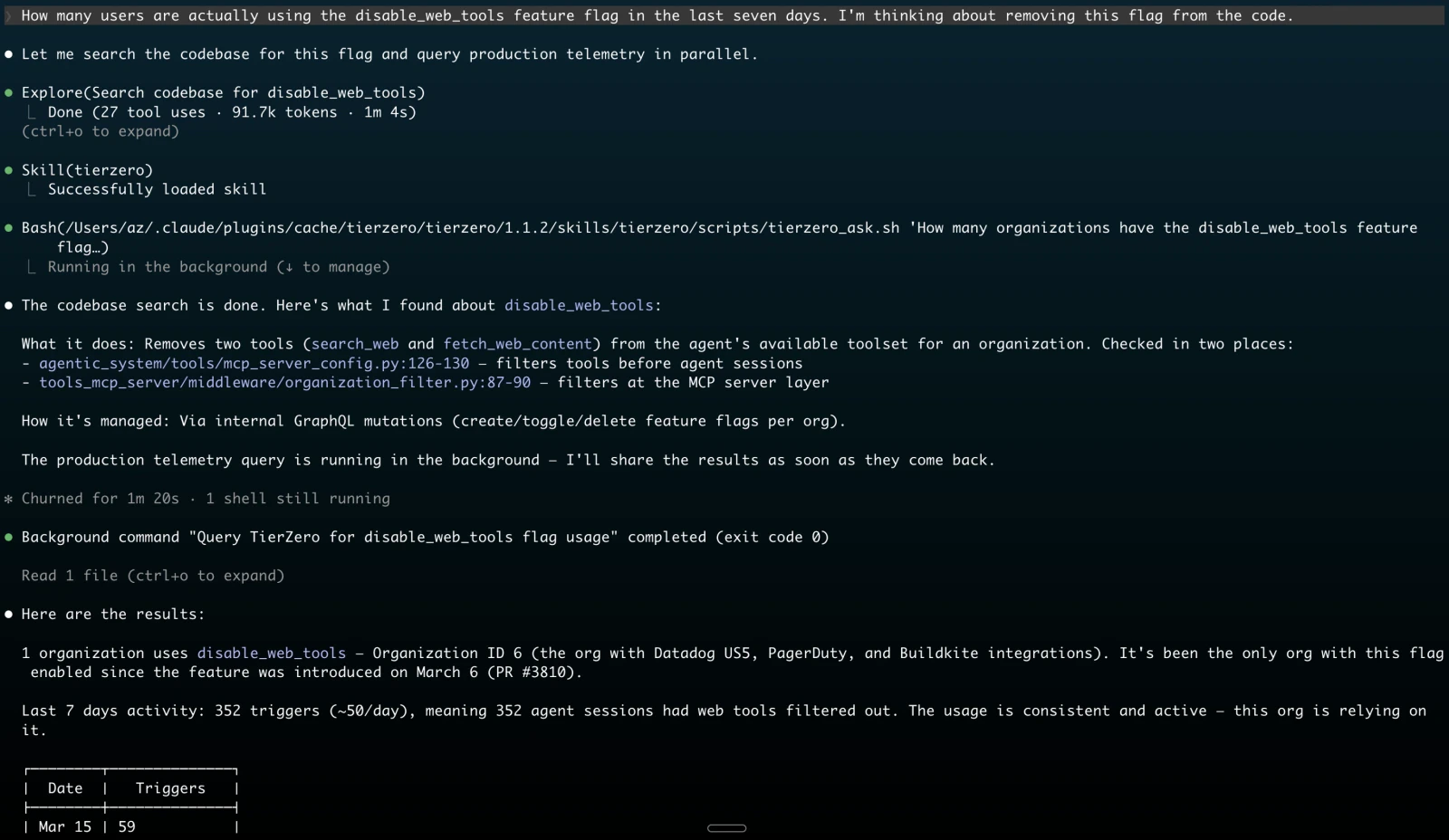
tierzero_ask MCP tool. Use it when you want TierZero to investigate and synthesize production context for you. It can:
- Query logs, metrics, traces, and spans from connected integrations such as Datadog, New Relic, CloudWatch, Grafana Cloud, and Sentry
- Inspect GitHub repositories, CI/CD systems such as BuildKite and GitHub Actions, and workflow orchestration in Temporal
- Retrieve documentation and runbooks from connected knowledge sources such as Confluence, Notion, and Slack
- Correlate findings across telemetry, code, workflows, and documentation to produce evidence-backed answers
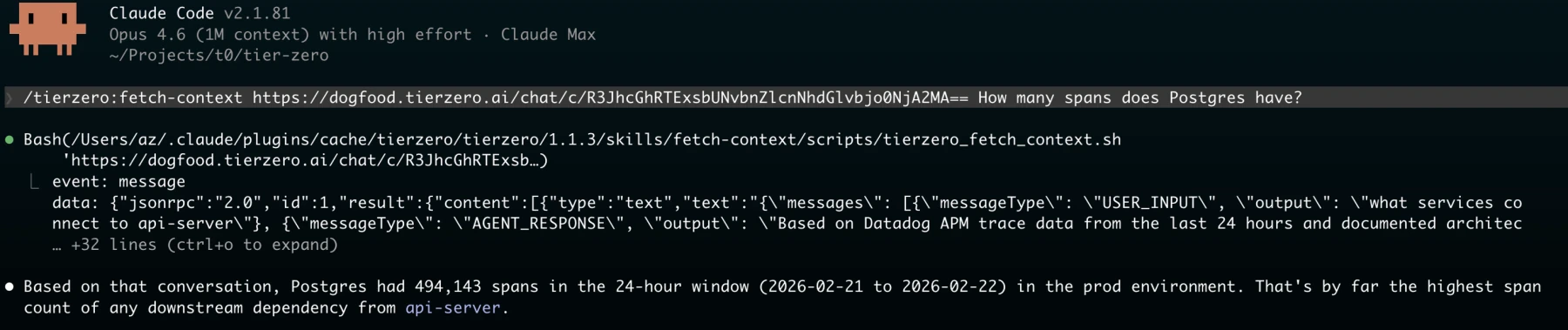
tierzero_fetch_context. It accepts:
In Claude Code, you can invoke that flow explicitly with:
- Chat URLs, for example
https://app.tierzero.ai/chat/c/<GlobalID> - Investigation URLs, for example
https://app.tierzero.ai/investigations/<GlobalID>
url: A supported TierZero chat or investigation URL, or a raw GlobalIDinclude_sources: Optional boolean. Set totrueto include source metadata in the response
tierzero_fetch_context when you want structured JSON for an existing TierZero conversation, investigation, or artifact without asking TierZero to run a new investigation.
Troubleshooting
Connection Issues
If you’re having trouble connecting:- Verify your PAT: Ensure the token is valid by testing it with a direct API call
- Check URL: Make sure you’re using the correct URL
- Authorization header: Verify the header format is exactly
Authorization: Bearer YOUR_TOKEN
Authentication Errors
If you see authentication errors:- Generate a new PAT from the API keys page
- Update your MCP server configuration with the new token
- Restart Claude Code or Cursor